34-inch 1440p ultrawide vs dual 27-inch QHD/4K monitors compared for coding, video editing, desk ergonomics, and single-cable USB-C setups.
In this article
Adding external display space to a laptop is the single highest-return upgrade for remote work—cutting constant Alt-Tabbing and eliminating the hunched neck posture caused by staring down at a 14-inch screen. Yet almost every desk builder eventually hits the same classic dilemma: one sweeping 34-inch 21:9 ultrawide, or two 27-inch 16:9 monitors side by side?
On paper both setups look generous, but in daily practice they feel remarkably different for window management, cable clutter, screen sharing, and long-term neck comfort.
Side-by-Side Breakdown: Pixels, Ergonomics & Cables
| Model / Option | Best For | Key Verified Specs | Typical Price Range | Key Trade-off | Check Price |
|---|---|---|---|---|---|
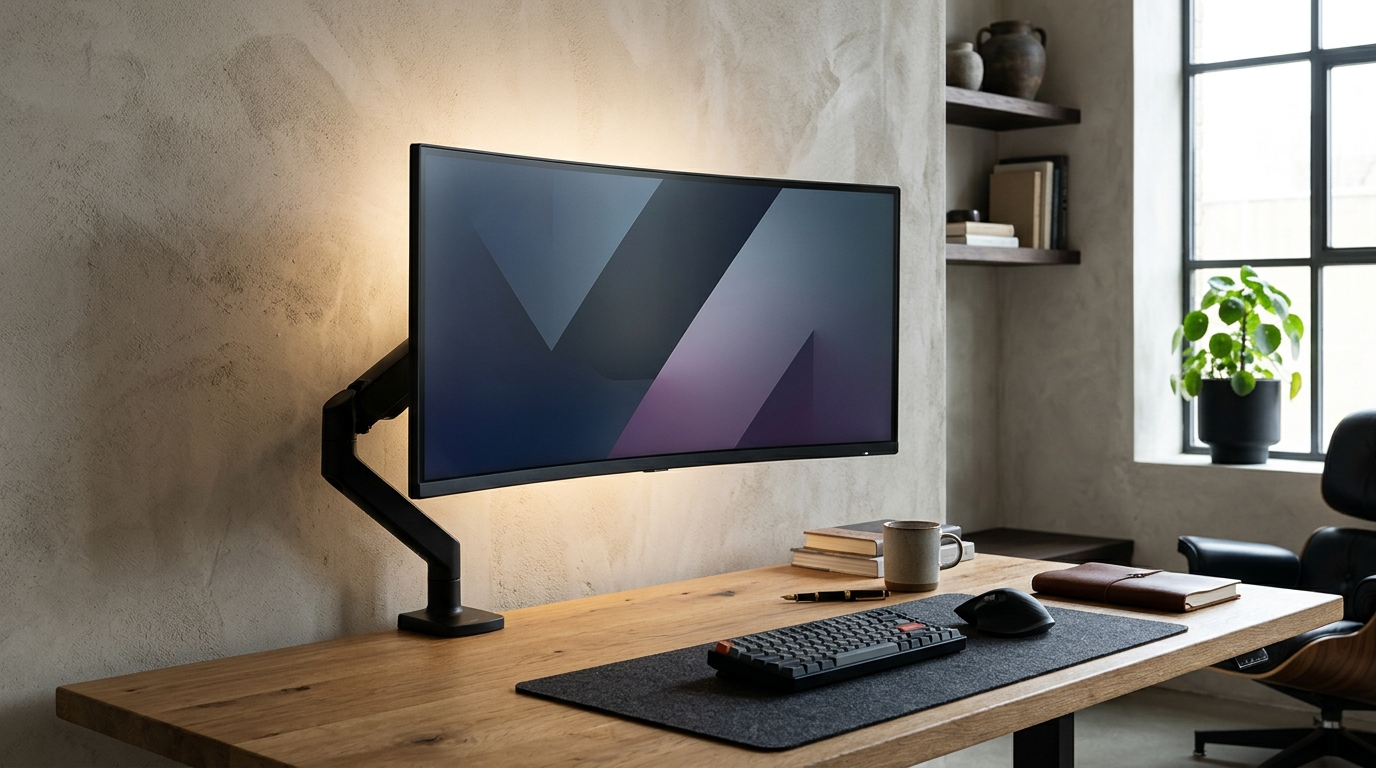
| Single 34-Inch Ultrawide (3440×1440) | Minimalist desks, video editors, analysts & single-cable MacBook users | 4.95 million total pixels (109 PPI)Zero center bezel + gentle 1900R–3800R curveTrue single-cable 90W USB-C power + Ethernet hub | $450 – $899 | + Dead-center primary focus prevents chronic neck twistUninterrupted horizontal canvas for video timelines & 3-column layouts − Full-screen Zoom sharing looks letterboxed to 16:9 viewers | Check on Amazon |
| Dual 27-Inch Monitors (QHD or 4K) | Software engineers, heavy presenters & multi-app power users | 7.37M pixels (dual QHD) or 16.58M pixels (dual 4K)Supports 1 horizontal + 1 vertical portrait screenNative 16:9 full-screen sharing on either panel | $600 – $1,100 (pair) | + Significantly more total screen area and retina-sharp 4K textEffortless full-screen video calls on one display while referencing notes on the other − Requires a wider 55–60 inch desk, dual arms & extra cabling | Check on Amazon |
Ergonomics: The Center-Bezel Trap Nobody Warns You About
When people set up two identical 27-inch monitors symmetrically side by side, the plastic frame seam sits directly in front of their nose. That forces you to turn your head 15 to 20 degrees left or right for hours at a time—a subtle source of upper-trapezius stiffness by Friday afternoon.
You can fix dual-monitor ergonomics by placing one primary 27-inch monitor dead center and angling the second 27-inch monitor off to one side (ideally rotated vertically in portrait mode) for Slack, documentation, or terminal logs. Meanwhile, a 34-inch curved ultrawide solves posture effortlessly out of the box: your main app sits straight ahead, and secondary reference windows flank both sides within a gentle eye glance.
Text Clarity & Panel Choice: IPS Black vs OLED
If you spend 80% of your workday reading code, financial models, or editorial drafts, choose an IPS or IPS Black panel over a QD-OLED gaming ultrawide.
- IPS Black (2000:1 contrast): Delivers deep inky dark modes, razor-sharp RGB subpixel text rendering, zero burn-in anxiety from static IDE toolbars, and wide viewing angles.
- OLED: Stunning for evening movies and HDR gaming, but triangular subpixel layouts cause subtle color fringing on small black-on-white typography and auto-dimming (ABL) can distract during white spreadsheet work.
Cable & Laptop Compatibility Reality Check
If you plug a laptop into your desk every morning:
- A 34-inch USB-C hub monitor (like the Dell UltraSharp U3425WE) delivers one single Thunderbolt/USB-C cable that charges your laptop at 90W, carries 120Hz video, connects Gigabit Ethernet, and drives your keyboard, mouse, and webcam cleanly.
- Dual 27-inch 4K monitors require either a $200–$300 Thunderbolt 4 dock or plugging two separate cables into your MacBook every single time you sit down.
✓ What We Like (Pros)
- 34-inch ultrawides fit comfortably on compact 48-inch apartment desks with zero cable mess
- Dual 27-inch 4K setups deliver unmatched 163 PPI Retina text crispness for macOS designers and developers
- Portrait + landscape dual layouts make reading long code files, PDFs, and Slack threads effortless
✕ What to Watch Out For (Cons)
- Ultrawides require disciplined window-only screen sharing during client presentations
- Dual monitors double your power draw, cable clutter, and desk-width requirements
Final Verdict: Which Setup Wins Your Desk?
- Buy the 34-Inch Curved Ultrawide if your desk is under 55 inches wide, you love single-cable laptop docking, you edit wide timelines or spreadsheets, and you want zero center-bezel neck strain.
- Buy Dual 27-Inch Monitors (1 Horizontal + 1 Vertical) if you live on full-screen client demos, crave ultra-crisp 4K macOS text scaling, or want maximum pixel count for complex engineering workflows.
Frequently Asked Questions
Is screen sharing annoying on a 34-inch ultrawide monitor?
Sharing the entire 21:9 desktop makes text look tiny and letterboxed on a coworker's 16:9 laptop. Always share a single application window—or use a virtual 16:9 screen-sharing region tool—when presenting from an ultrawide.
Which monitor setup is better for neck posture?
A single 34-inch curved ultrawide sits dead center in front of your chair with zero center bezel, eliminating the subtle 20-degree neck twist caused by symmetrical side-by-side dual monitors.
Can one USB-C cable drive dual 27-inch 4K monitors from a MacBook?
Standard macOS does not support DisplayPort MST daisy-chaining over a single regular USB-C cable; you need a Thunderbolt 4 dock or two separate cables. A single 34-inch ultrawide runs cleanly off one 90W USB-C cable.
Should I buy an IPS or OLED panel for 8 hours a day of coding and spreadsheets?
Stick with an IPS or IPS Black panel for heavy text work. OLED subpixel layouts introduce slight color fringing around small black-on-white text and carry long-term burn-in risk from static menus and taskbars.
How deep does my desk need to be for a 34-inch ultrawide or dual 27-inch monitors?
Aim for at least 24 inches (60 cm) of desk depth with a clamp monitor arm, or 28 to 30 inches if using factory stands. For width, dual 27-inch monitors comfortably require a 55- to 60-inch desk, whereas a 34-inch ultrawide fits neatly on a 48-inch desk.
Is 109 PPI on a 34-inch 1440p ultrawide sharp enough for macOS users?
At a normal 26-inch viewing distance, 109 PPI looks clean on Windows, while macOS users accustomed to Retina MacBook screens often notice slightly softer font rendering compared to a 27-inch 4K (163 PPI) or 40-inch 5K2K ultrawide.